SensAI
Abstract
SensAI is an assistant built into the Dojo. Ask it about your job (which trial took the longest?), what your trials were sampled from (what is the wind speed drawn from?), tell it to change your plot (plot the x position of box2 and make it red) or to compare trials in versus mode (compare the trials where wind speed was 2 or more standard deviations out), ask what a trial recorded, ask how to do something in Mojo (how do I add a requirement?), or ask what a setting does (how do I start the Dojo in fullscreen?). It answers in plain language, using the same data the Dojo shows you.
SensAI is optional and still experimental. It is an AI assistant and can make mistakes, so please verify its answers and any changes it makes before relying on them. It talks to a language model that you choose and provide a key for; nothing is sent anywhere until you turn it on.
Setting it up
SensAI needs the sensai extra, and a model.
1. Install the extra.
2. Turn it on and name a model. The easiest way is the settings panel (the gear in the Dojo's toolbar): open Dojo > SensAI, switch Enabled on and add an entry under Models. You can also set it in ~/.mujoco-mojo/settings.toml:
| TOML | |
|---|---|
3. Give the provider your key in the environment variable that provider reads. The best place for it is a .env file in your project, which Mojo reads for you every time it starts:
Then start the Dojo as usual:
Mojo looks for the .env from where it is installed and upward, not from the folder you run the command in, so it finds the one in the project that holds your virtual environment. If Mojo is installed somewhere else, such as a tool install, put the file in a folder above that install, or set the variable in your shell instead. Add .env to your .gitignore, so the key is never committed.
To use a key for one session only, set it in your shell before you start the Dojo. A variable set in the shell takes priority over the .env:
SensAI reads the key from the environment and never stores it in the settings file. Once SensAI is enabled, a sparkle button appears at the bottom right of every Dojo page.
Choosing models
models is a list, and the order matters: SensAI tries the first entry, and falls back to the next when a model cannot answer, for example when you hit a free tier's rate limit. Each entry has:
| Field | Meaning |
|---|---|
provider |
Who serves the model. One of the providers below. |
model_name |
That provider's own name for the model, such as gemini-3.5-flash-lite. |
base_url |
Optional. Send this entry's requests to this address instead of the provider's usual one, for example a gateway or a proxy. Ollama needs one. |
The Provider menu in the settings panel shows the variable for each choice.
Example: A local model with Ollama, and a cloud model as a backup
Ollama has no default address, so give each Ollama entry its own base_url:
Anthropic with a bearer token
Anthropic is usually reached with ANTHROPIC_API_KEY. If your organization uses a gateway that expects a bearer token, set ANTHROPIC_AUTH_TOKEN instead, and SensAI sends it as an Authorization: Bearer header. When both are set, the key is used. Put the gateway's address in the entry's base_url, or in ANTHROPIC_BASE_URL.
A provider whose client does not accept a base_url (not every one does) refuses the setting with an error that names the provider, rather than quietly sending your requests somewhere else.
Limits
Two settings keep a message from running away:
| Setting | Default | What it limits |
|---|---|---|
dojo.sensai.max_requests |
12 | The most model requests one message may make. A message that goes over is stopped with an error that names this setting, and your plot is left as it was. |
dojo.sensai.max_versus_trials |
50 | The most trials one message may add to versus mode, since each one loads its data. Ask again to add the next batch. |
The chat window
Press the sparkle button to open the chat. Type and press Enter (Shift+Enter for a new line). While it works, the window shows what it is doing, and the reply follows.
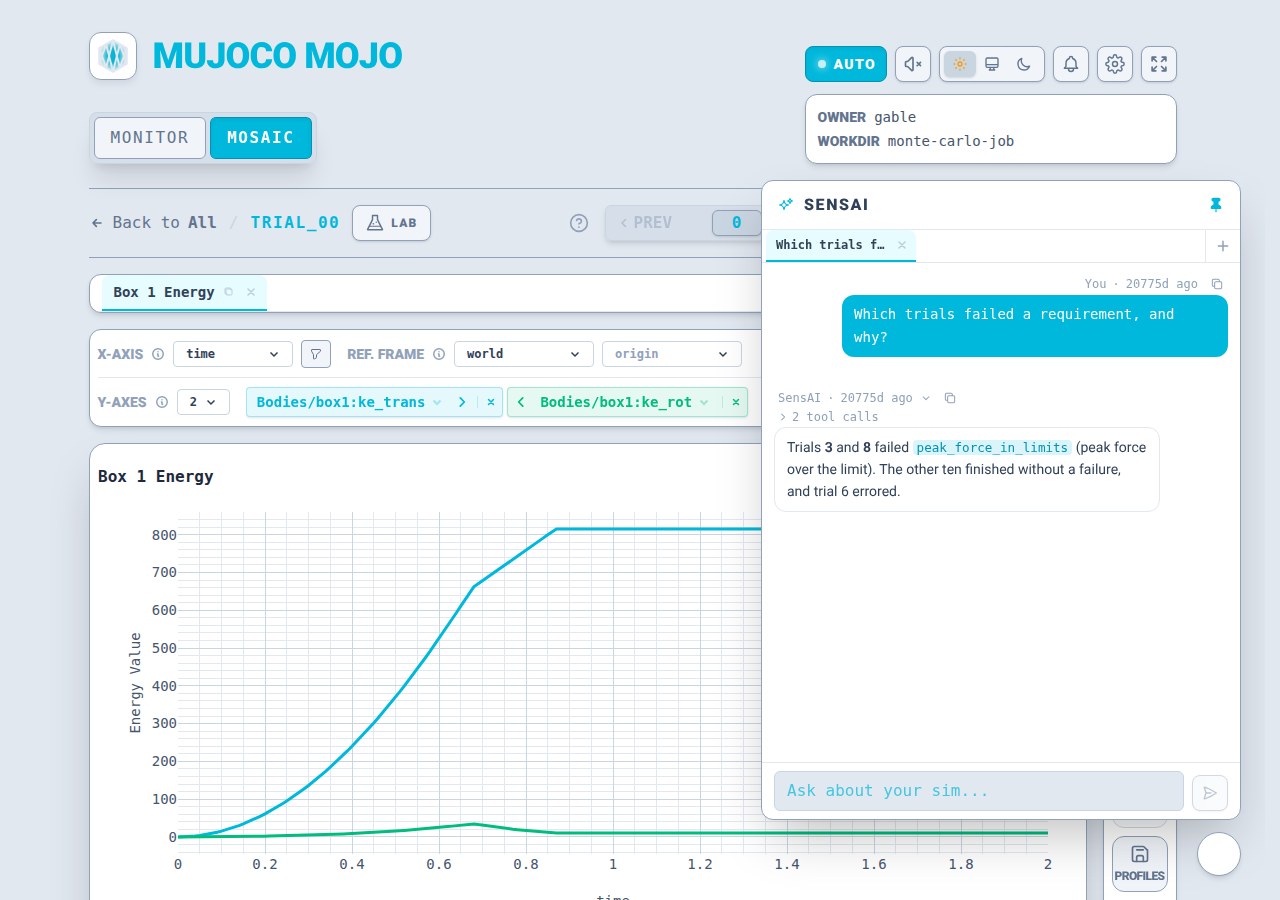
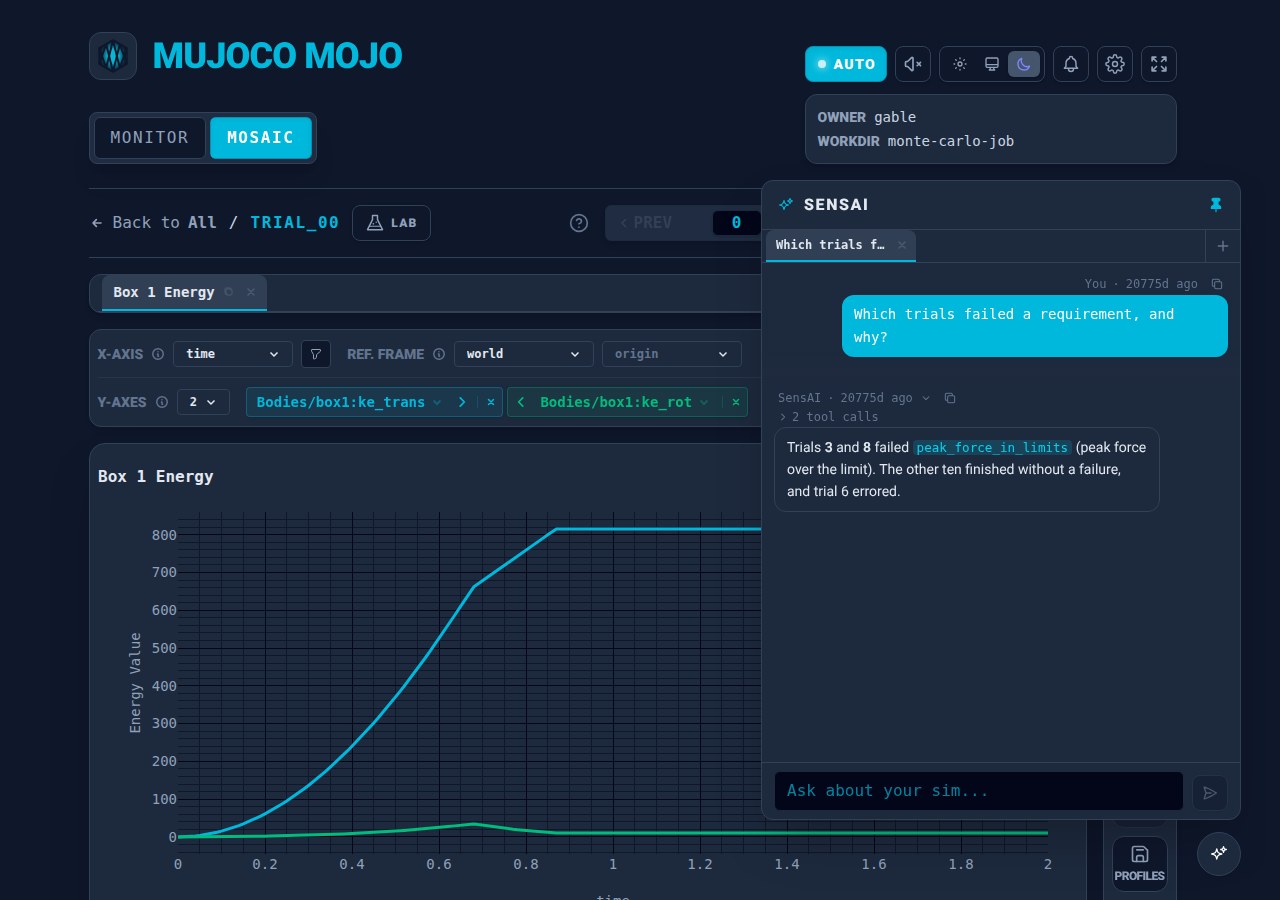
- Tabs: each tab is its own conversation, titled with the start of its first message. Add one with +, rename it by double-clicking its title, and close it with its x, which is how you clear a chat. Up to eight can be open, and your browser remembers them.
- One at a time: requests run in the order you sent them. While one chat waits, you can write in another, and each answer lands in the tab that asked, with a mark if you were looking elsewhere. Two plot edits running together would overwrite each other, which is why.
- Pin: keeps the window open when you click elsewhere or press Esc. Unpinned, a click outside closes it.
- Tool calls: every reply lists the calls behind it, such as what it asked the job report for or which signals it added, live while it works and as a closed N tool calls line afterward. A call the server turned away is shown with its reason.
- Copy and the model: each message has a copy button, and hovering the row above a reply shows which of your models wrote it, which tells you when a fallback answered.
- Long messages: the latest stays open and older ones fold to a preview you can click open.
- Chat history: the export menu can download the conversation.
Getting a good answer
Ask for one thing at a time, and name signals and trials the way the Dojo shows them, or say what a signal measures: SensAI also searches the descriptions of the signals, so "the box's angular velocity" can find Bodies/box1/xvelr:y. The built-in signals describe themselves, and you can describe your own. A small model can pick the wrong edit; the server refuses an invalid one and the model gets a few tries, and if it still cannot, the plot stays as it was and you are told why. If a chat stops with an error about the number of requests, raise dojo.sensai.max_requests or split the ask.