Mosaic
Abstract
The Mosaic tool is the heart of the Dojo. While the Monitor tells you that a job finished, Mosaic shows you how it performed. It is a high-performance telemetry viewer designed to handle massive datasets while staying very customizable.
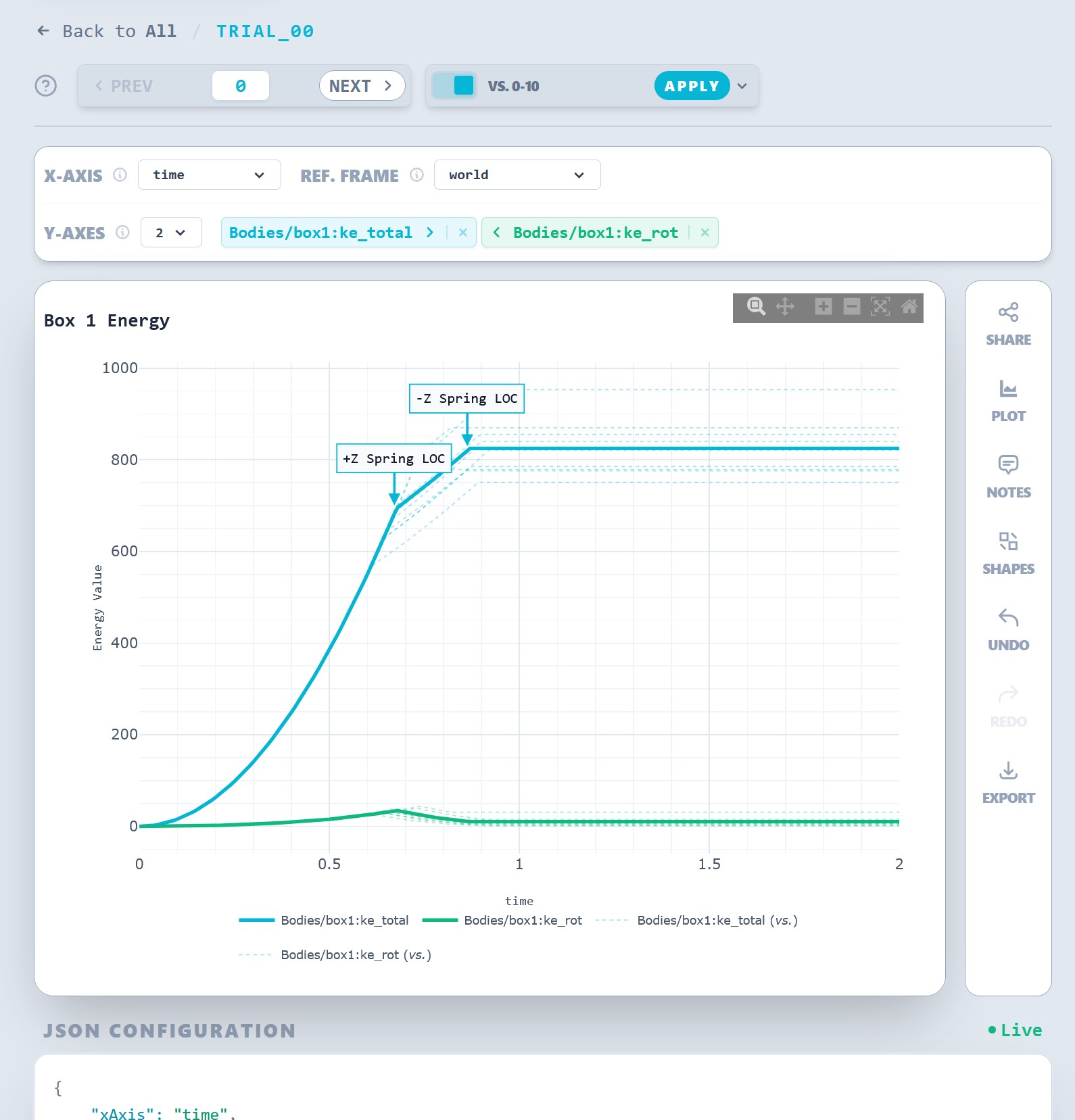
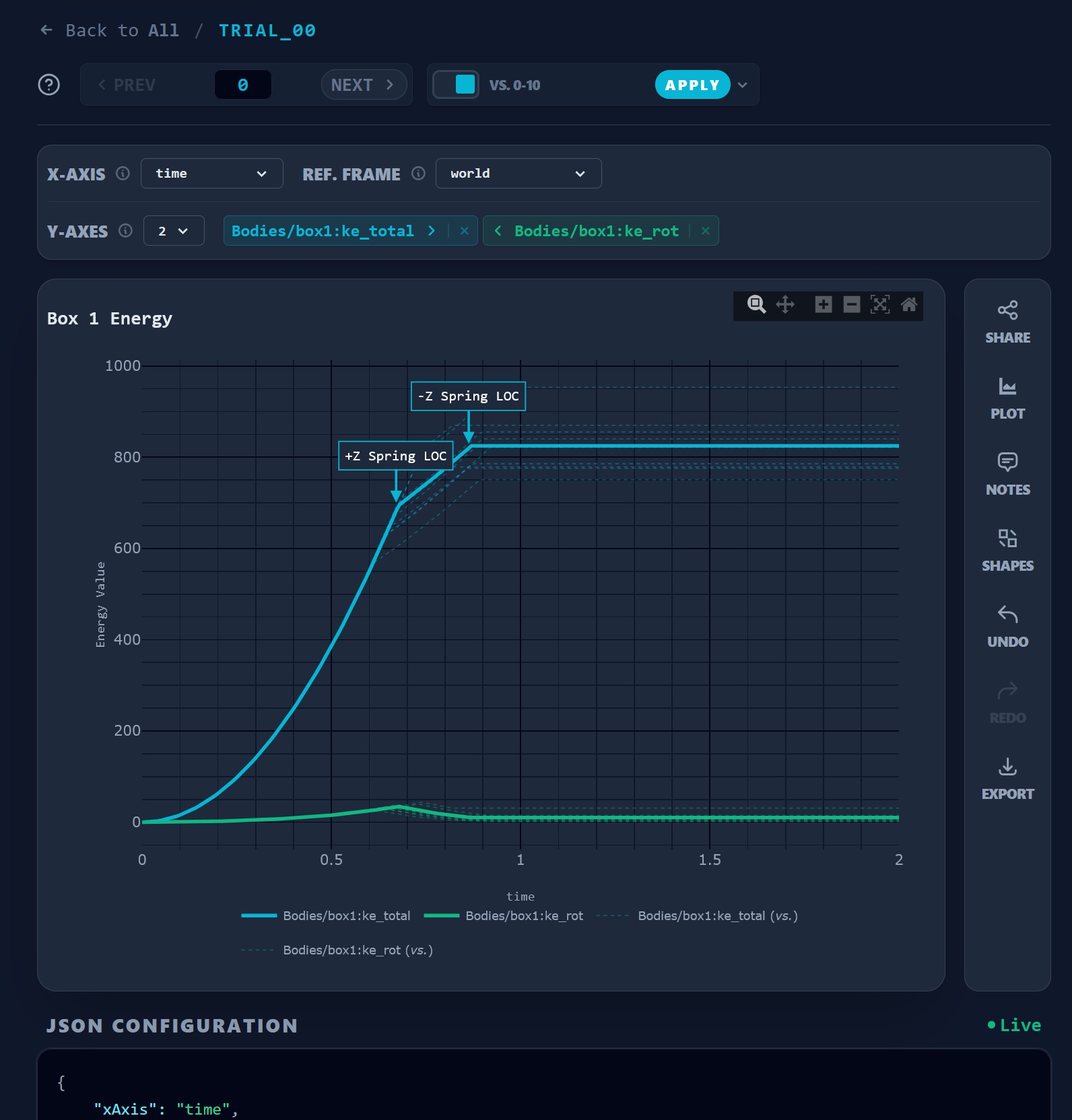
trial_00. Annotations indicate key moments in the simulations. Two telemetry signals per trial are shown with 9 additional trials displayed for comparison.Selection Ribbon
The top of the page is dedicated to Data Navigation and Signal Selection. Trial Navigation
- Sequential Access: Use the PREV and NEXT buttons (or your arrow keys) to flip through trials like a slide deck.
- The Warp Box: Want to jump to a specific trial? Type the number into the center box and hit Enter (or click Warp).
- Versus Mode: Toggle the VS switch to overlay the current trial against a range of other trials. This is essential for identifying outliers in a Monte Carlo run.
Signal Selection (X and Y Axes)
- X-Axis: Usually set to time, but you can map any telemetry signal to the X-axis to create phase-space plots (e.g.,
velocityvs.position). - Reference Frame: For signals which could have a full quaternion defined (ends with
quat:(w|x|y|z)), a reference frame can be defined to rotate vector based columns (those ending in:(x|y|z)). It is assumed these vector columns are defined in theworldframe. - Y-Axes (Multi-Select): You can overlay as many signals as you want. With a reference frame other than
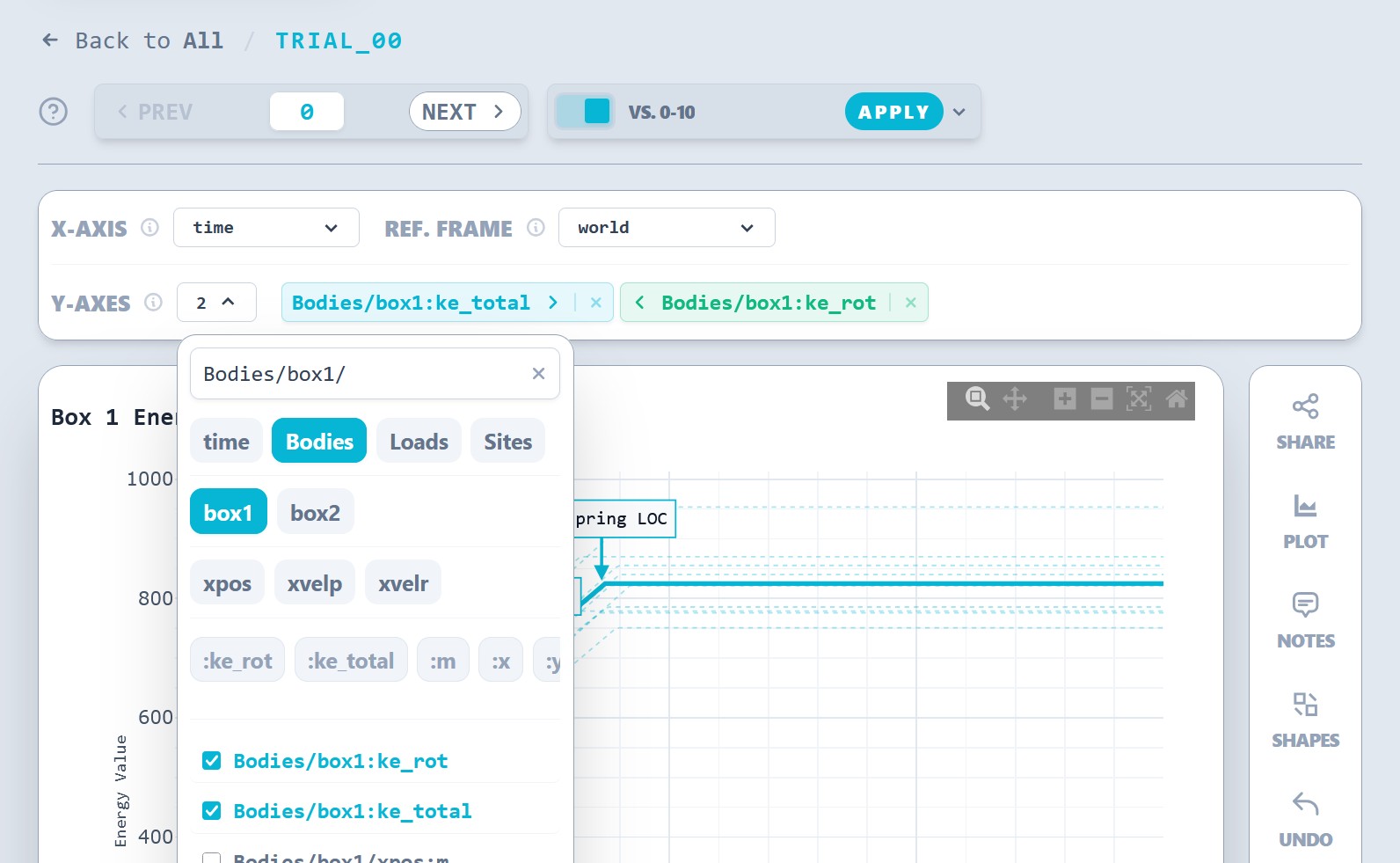
worldselected this list is automatically filtered to available vectors. - The Ribbon: Selected signals appear as color-coded chips. Use the arrows on the chips to reorder them. The order in the ribbon determines the color mapping on the plot. You can also remove signals with the "x" button.
Pro Tip: Regex Filtering
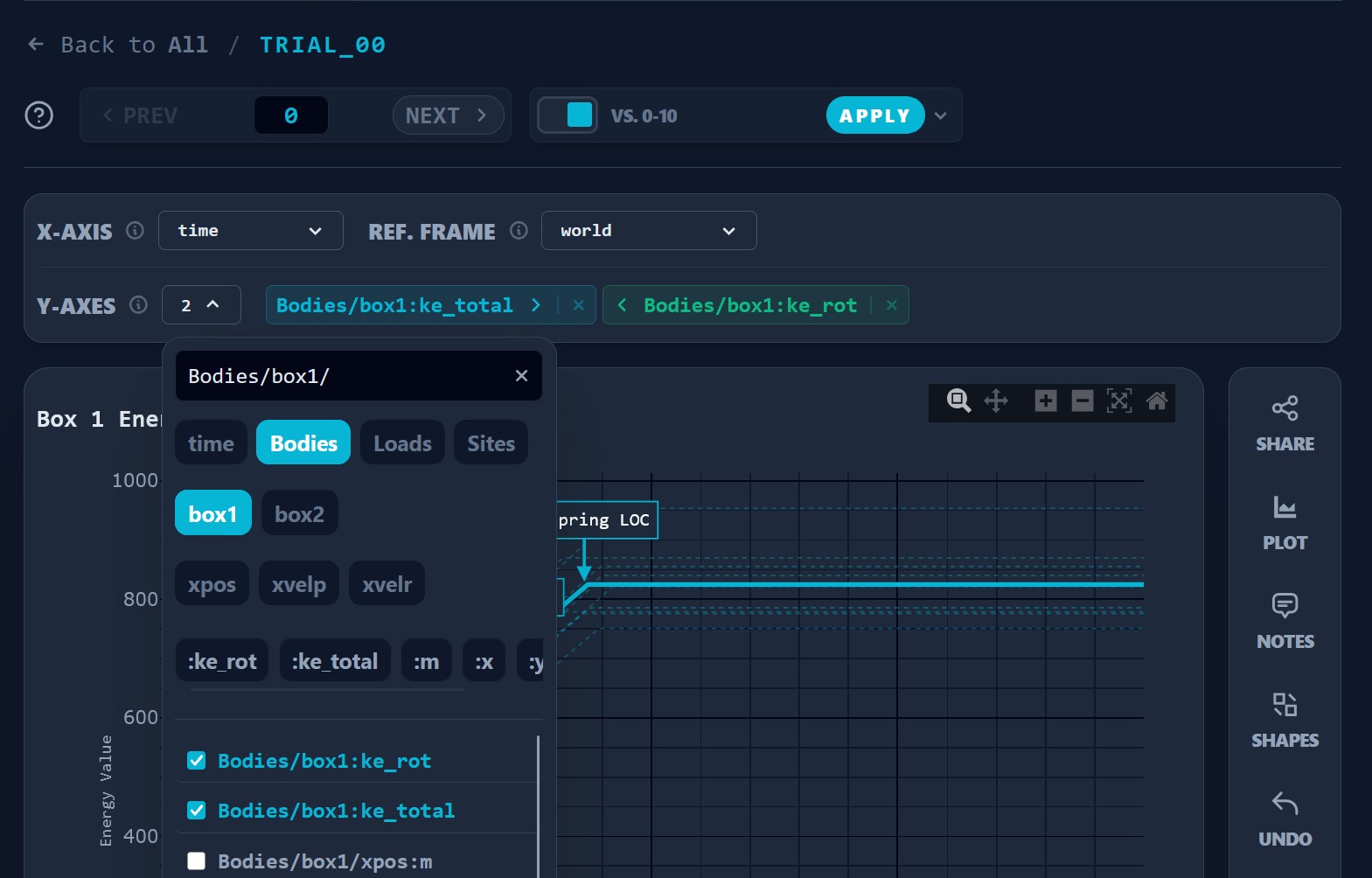
The dropdowns aren't just lists; they are Regex-aware. You can use the segment buttons (like quat, ctrl, or sens) to quickly filter down hundreds of signals to just the ones you need.
Sidebar
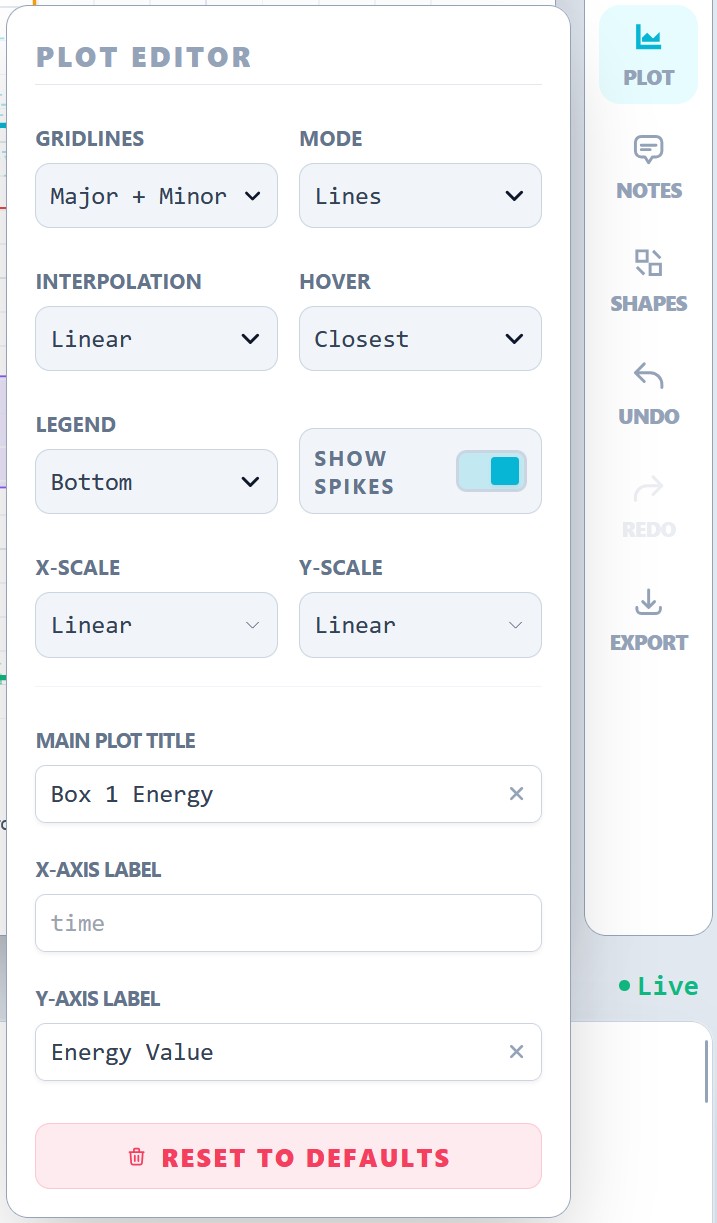
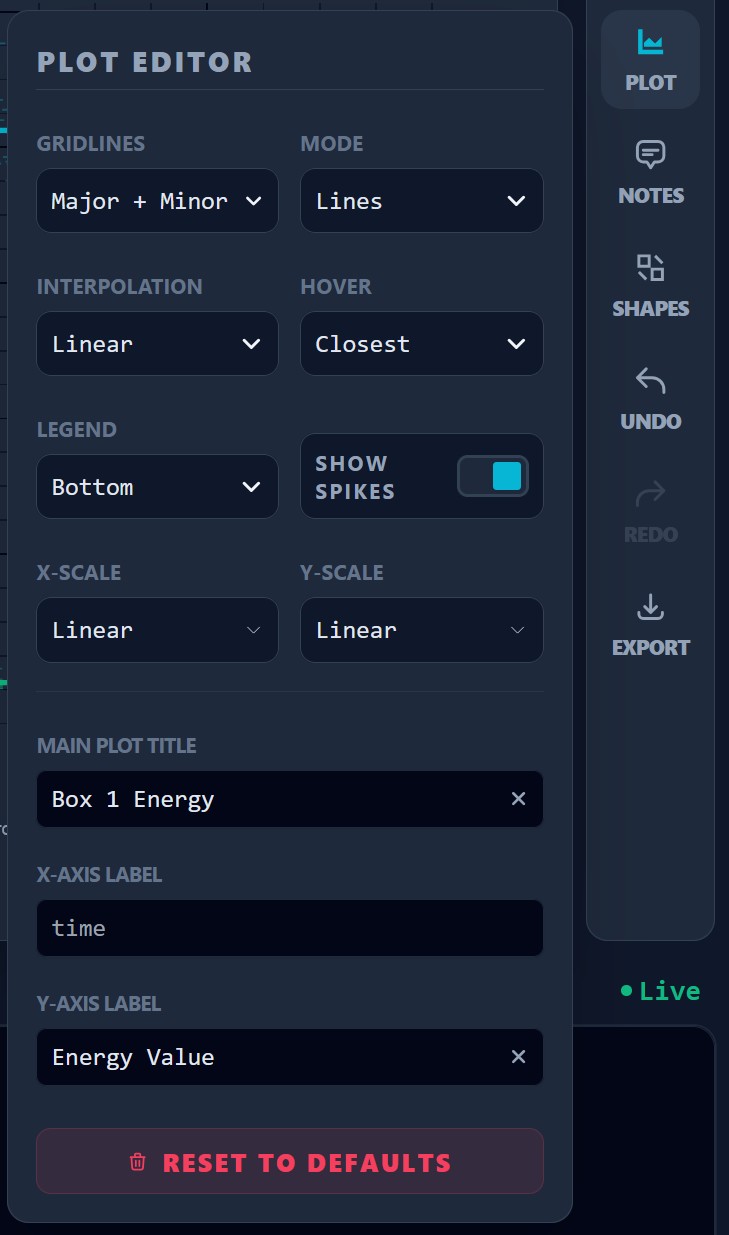
The sidebar provides many plot appearance configuration options.
Share Button
This button compacts your current plot view (trial, selected data, plot appearance, etc.) and converts it to a link that you can send to others. Great for getting a second opinion, or sharing an interesting result!
Plot Editor
Adjust the visual style. Switch between Lines, Markers, or both. Change interpolation (Spline vs. Linear) or toggle Logarithmic scales for high-dynamic-range data.
Notes Editor
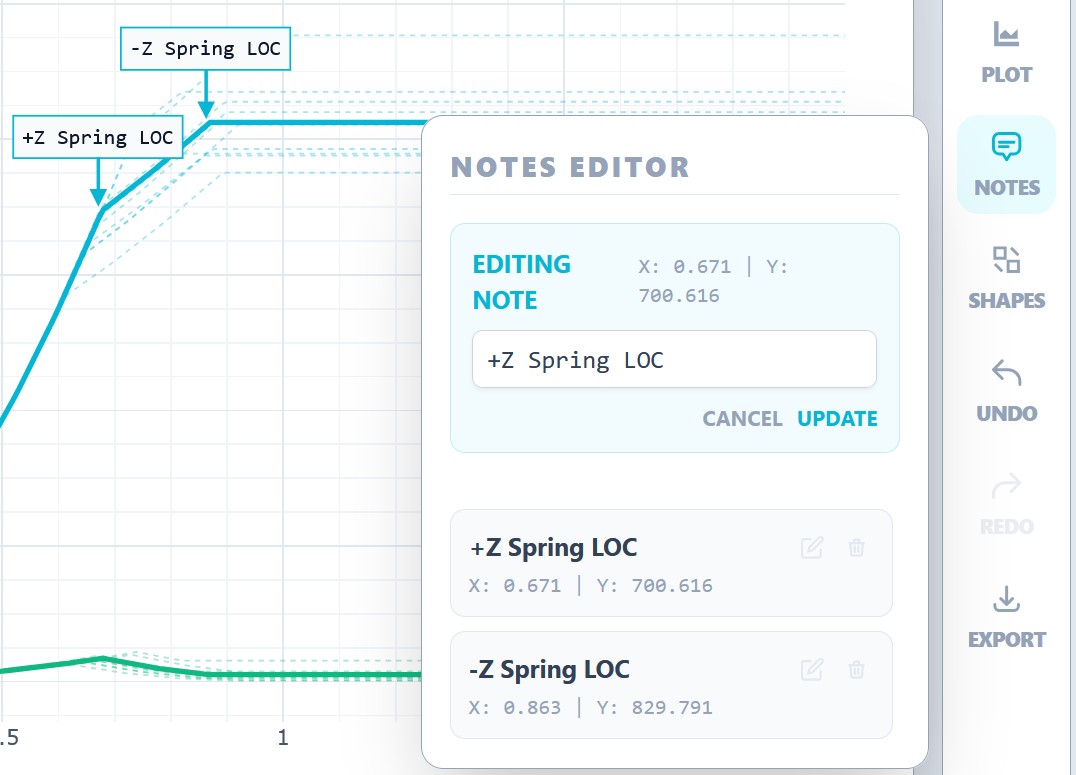
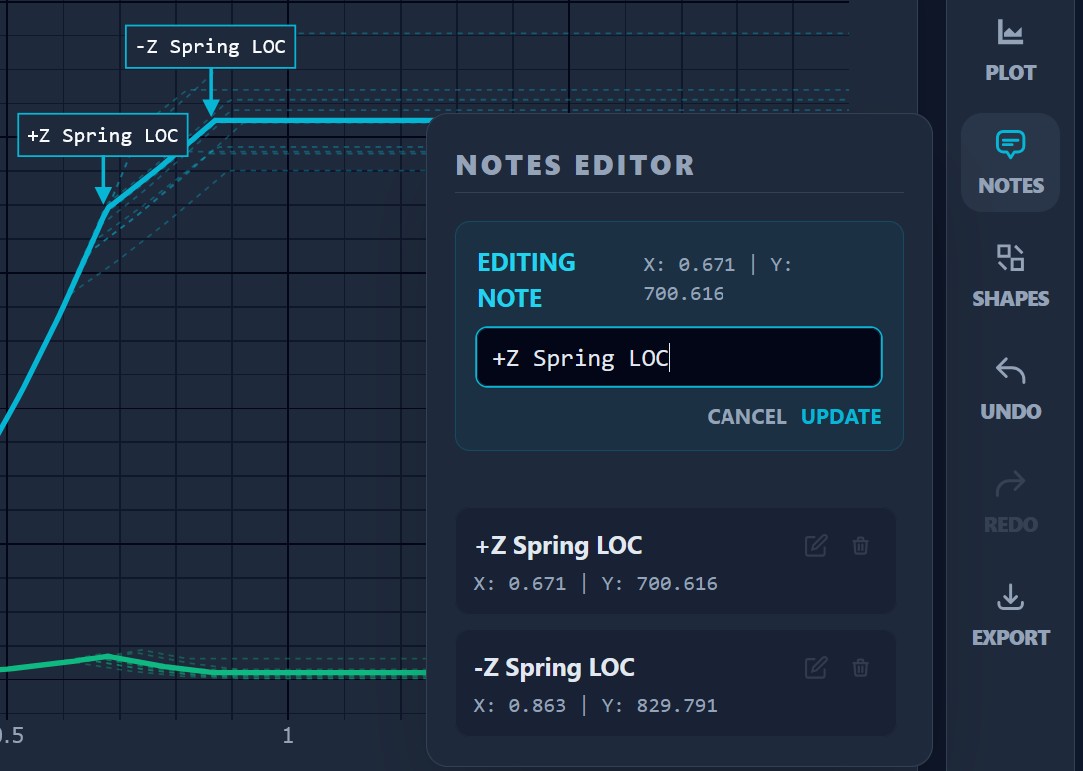
Middle-click anywhere on the plot to drop a persistent note at the exact data coordinates of your cursor. Notes are saved into the JSON config and help you flag specific events (like "Impact Start" or "Sensor Saturation"). The editor allows you to go back and edit the note's label. Press Esc to cancel an in-progress note or close the panel.
Tip: Clickable Buttons
You can click on a note in the editor to "focus" on the note!
Shapes Editor
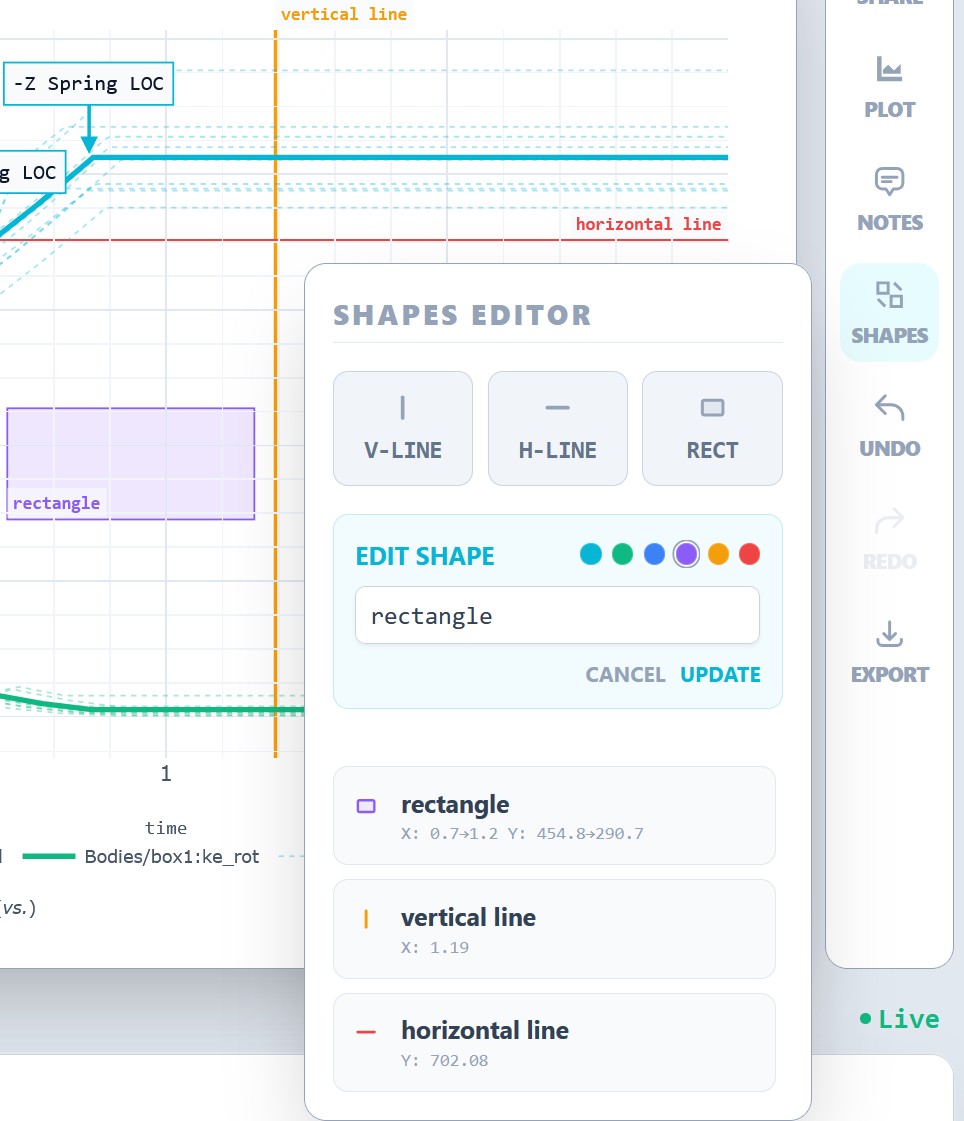
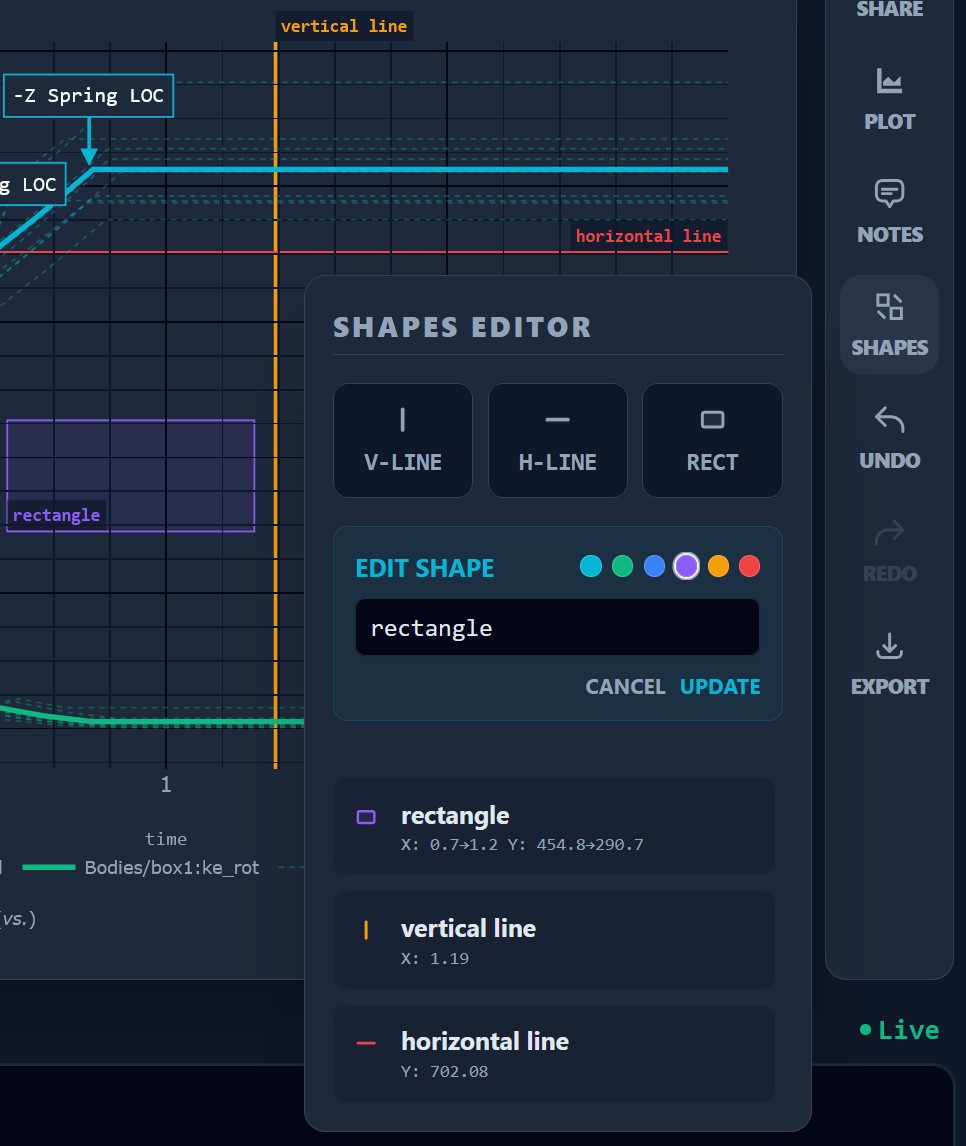
Add various shapes to the plot. After selecting an option in the menu, your mouse becomes a placement tool. Clicking on the plot configures the placement of the shape. Press Esc at any time to cancel placement.
- V-Line: Draws a vertical line on the plot. The abscissa of the mouse determines the abscissa of the line.
- H-Line: Draws a horizontal line on the plot. The ordinate of the mouse determines the ordinate of the line.
- Rect: Draws a rectangle on the plot. The abscissa and ordinate of the mouse determines one of the corners of the rectangle. Likewise, the second click determines the other corner.
Each new shape is automatically assigned the next color in the preset palette so overlapping shapes remain visually distinct. The shape editor includes a full color picker (identical to the signal color picker) for precise color control.
Saved Profiles
Profiles save your complete plot configuration (selected signals, axes, display settings, zoom, annotations, and shapes) under a named key so you can restore a view instantly.
Profiles are stored globally in ~/.mujoco-mojo/profiles/ and are available across all workdirs, making it easy to share a standard analysis setup between projects.
Creating a profile
Type a name in the save box and press Save or Enter. To organize profiles into folders use a folder/name path, for example arm-reach/baseline. Folders are created automatically and the input field offers Tab-completion for existing folder names.
Loading a profile
Click Load next to any profile in the list. If the profile references signals, axes, or reference frames that do not exist in the current trial it will be rejected with an error toast rather than silently applying an invalid configuration. Profiles that are incompatible with the current trial are marked with a warning icon in the list.
Searching profiles
A search box filters the profile list by name (including folder path) as you type.
Undo/Redo
Every change to the plot configuration is tracked. Use the standard shortcuts (Ctrl+Z / Ctrl+Y or Cmd+Z / Cmd+Shift+Z) to step through your edits.
Export Options
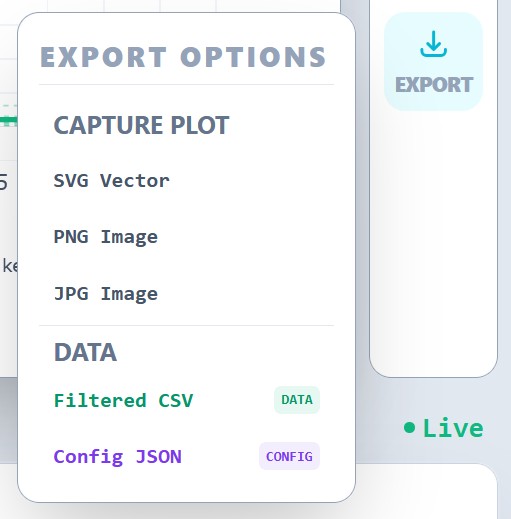
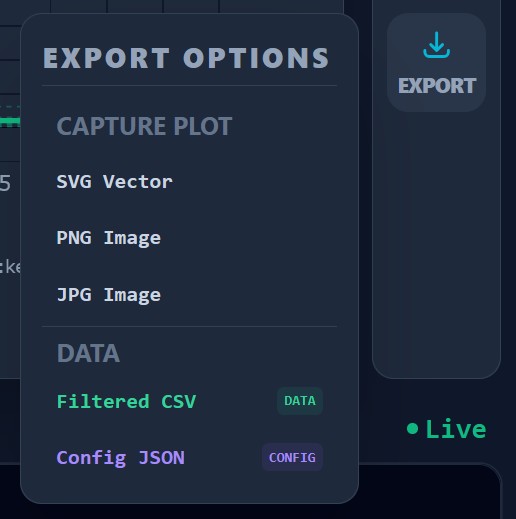
Dojo provides a few basic export options to capture an image of the plot or save data from the configuration.
- Capture Plot: Three options for saving the plot appearance are provided (SVG, PNG, or JPG)
- Filtered CSV: A CSV file containing the data currently being plotted can be downloaded for a look at the raw data.
- Config JSON: The current page configuration can be downloaded as a JSON so it can be reloaded at a later time.
The JSON Editor
At the bottom of the page sits the Live JSON Configuration.
Everything you do in the UI is mirrored in this JSON block in real-time, from selecting axes, adding notes, changing colors.
- Live Editing: You can type directly into this editor. If you have a specific list of 20 Y-axes you want to add, pasting them into the JSON is often faster than clicking 20 boxes.
- Validation: The editor features a Syntax Health indicator and description of any issues.
- Copy/Format: A copy and format button are also provided to provide improved quality of life.
Tip: Drag and Drop
If you downloaded a Config JSON in the export options menu, you can drag and drop that file back on this page to update the JSON configuration!
Success
You are now an expert with MuJoCo Mojo!
Live long and prosper!